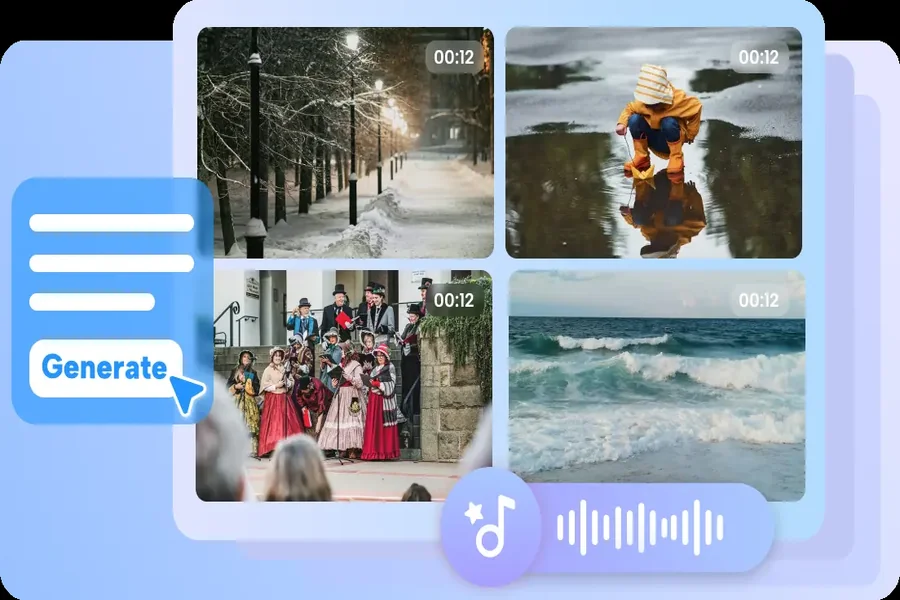
That changes the questions worth asking before generation. Instead of describing only what the audience sees, a creator can decide what they should hear, when a sound should occur, and whether it should be prominent or subtle. The following guide looks at how to plan those choices and assess the result.
What Audio Adds to an AI-Generated Scene
Sound carries information that a picture alone may leave open. A door closing softly suggests a different moment from the same door slamming. A garden scene can feel peaceful with distant birds or tense with a low, continuous hum. Neither interpretation is inherently correct; the right one depends on what the scene needs to communicate.
In Seedance 2.5 Flash, audio and visual generation can be considered together rather than treating sound as an afterthought. A prompt can describe an action and its accompanying sound in the same instruction: “A ceramic cup is placed on a wooden table with a soft clink.” That relationship gives the model a clearer target than asking for “a cinematic scene with sound.”
A generated soundtrack is still a creative output to review. The sound may not match the timing, prominence, or character the creator had in mind. The advantage is that the first candidate gives you both a visual and an audible direction to evaluate.
Three Ways to Think About Sound
Before writing a prompt, decide what role sound plays. These categories can overlap, but separating them makes an instruction more precise.
Sound that explains an action
An action sound draws attention to something visible: a key turning, footsteps crossing a floor, or paper being folded. Describe both the source and the moment it occurs. For example: “A paper bag is gently folded closed, with a light rustling sound as the hands press the top.”
If the action is the central point, leave room for it in the mix. A prompt that requests loud music and many background noises may obscure the very sound meant to make the moment clear.
Sound that establishes a place
Ambient sound gives a setting a sense of space. Distant traffic, wind through leaves, or a quiet room tone can tell viewers what kind of environment surrounds the subject, even when the source is off-screen.
Be specific about distance and intensity. “Soft rain outside and a faint hum indoors” communicates a different environment from “heavy rain striking the roof.” Both could accompany a window, but they lead to different moods.
Sound that shapes emotion
Music, rhythm, and tonal texture can influence how an image feels. A slow, sparse musical background can support a reflective sequence; a brisk rhythm can make the same type of movement feel energetic.
Describe the qualities you want to hear rather than relying only on an emotional label. “Gentle piano notes with plenty of space between them” gives more direction than “emotional music.” If the scene needs to feel natural, you can instead ask for ambient sound without a prominent musical track.
Build a Prompt Around an Audiovisual Moment
A useful prompt connects four decisions: the visible subject, the action, the sound, and the relationship between them. You do not need to describe every second in technical language. Start with the moment that matters most.
Consider this visual-only prompt:
“A close-up of a kettle on a kitchen counter.”
It provides a subject and a location, but leaves the action and sound undecided. A more complete instruction could be:
“A close-up of a kettle on a kitchen counter. Steam rises gently from the spout as a soft, steady bubbling sound fills the quiet room. The camera remains still, with warm morning light.”
The second version identifies movement, a sound source, and the character of the sound. The instruction also keeps the camera still, making the steam and bubbling the focus. It does not guarantee a perfect result, but it gives the model a clearer relationship to interpret.
For an entirely different mood, change the sound and visual treatment together: “A kettle sits on a dark counter. The room is quiet except for a faint ticking clock; a cool strip of light falls across the kettle.” Here, the silence and the clock support a more restrained scene.
Give Sounds a Place in Time
A clip is a sequence, so the timing of a sound can matter as much as its identity. A bell heard before an object appears creates a different effect from a bell heard exactly when it is touched.
Use plain temporal language to describe the sequence: “At first, the room is quiet. As the window opens, soft wind becomes audible.” Or: “A book falls onto the desk with a single thump, then the sound fades.” These instructions connect the audio event to a visible change without requiring an elaborate script.
For a short clip, keep the sequence simple. One main action and one or two supporting sounds are easier to evaluate than a crowded list of noises. If several events need precise timing, consider creating shorter shots and assembling them in an editor.
Watch the result more than once. On the first viewing, ask whether the scene makes sense as a whole. On the second, listen for the sound’s arrival, duration, and relationship to the visible action. A convincing sound at the wrong moment can distract from an otherwise strong clip.
From a Single Idea to Different Sound Directions
The same visual concept can support several creative treatments. Instead of generating completely unrelated scenes, keep the core visual stable and compare the role of sound.
Imagine a short shot of a bicycle resting beside a quiet street. One version might use soft wind, distant birds, and a gentle rustle of leaves. Another could use a faster musical rhythm and more prominent street ambience. A third might be nearly silent, with one distant bell as the focal point.
To make the comparison useful, keep the framing, subject, and primary motion similar in each prompt. Change the audio description deliberately, then ask what each version communicates. Does the sound invite the viewer to linger, suggest movement, or call attention to a particular detail?
This approach is useful for early creative exploration. Seedance 2.5 Flash is designed for faster generation, so creators can compare independent candidates and use what they learn to refine the direction. Each generation is a new result; it should not be treated as a guaranteed edit of the previous clip.
Working With Audio References
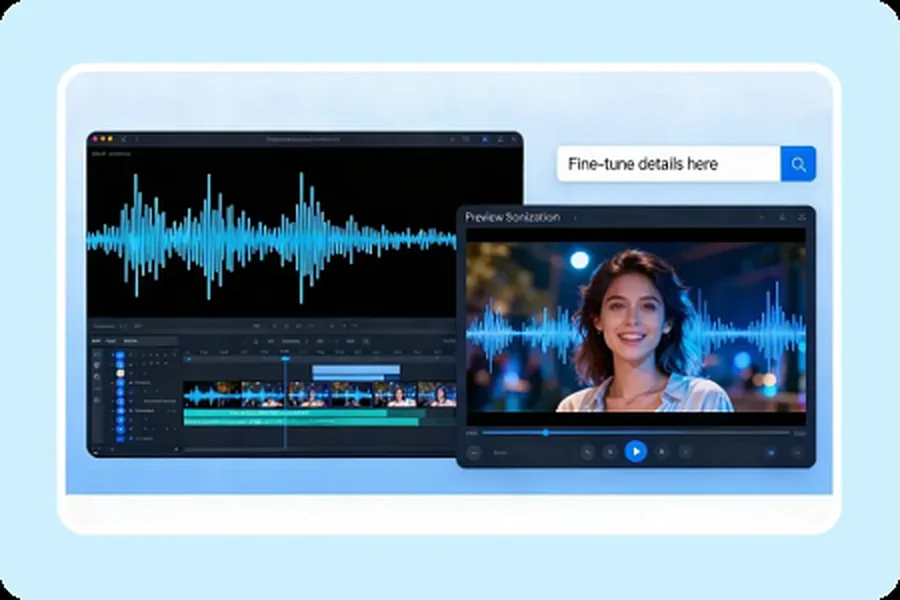
Words are useful for describing a sound, but sometimes a reference communicates texture, rhythm, or delivery more clearly. Seedance 2.5 Flash supports audio references in reference-based generation workflows. An audio clip might suggest the pacing of a soundscape, the character of an ambient texture, or the way a musical phrase feels.
Give the reference a defined job. For example: “Use the audio reference as a guide to the gentle, intermittent rhythm of rainfall; show raindrops moving down a window.” This tells the model which quality matters rather than assuming it should reproduce every sound in the file.
Choose material you have the right to use, and listen for unwanted elements before uploading it. A recording intended to demonstrate rainfall may also include voices or traffic. If those details are not part of the direction, select a cleaner excerpt or explain the desired focus in the prompt.
An audio reference guides a new generated result; it does not necessarily reproduce the original recording exactly. If the final project requires a particular licensed track or an exact sound, add and align that asset in editing instead of assuming the generation will recreate it.
Dialogue: Write for Clarity, Then Check the Result
Speech can make a scene feel immediate, but dialogue adds another layer to review. The viewer needs to understand the words, connect them to the correct speaker, and hear them at an appropriate level relative to the background.
Start with a short line and a clear delivery. For example: “A fictional shopkeeper says, ‘Welcome in,’ in a warm, unhurried tone. Quiet room ambience remains in the background.” The instruction identifies the speaker, wording, tone, and relationship between speech and ambient sound.
Keep important information out of a long, complicated generated monologue until you have evaluated how clearly the model handles the scene. Listen for pronunciation, missing words, unexpected extra speech, and whether the voice fits the visible character. Review the whole clip for synchronization as well as the audio itself.
Where exact wording, voice identity, or accessibility is essential, a separately recorded voiceover and captions may be a better final-production choice. The generated version can still help a team explore timing and tone before recording.
How to Review and Improve a Candidate
A practical review separates sound quality from the creative role of the sound. A clear recording can still be the wrong choice if it competes with the subject or changes the intended mood.
First, watch with sound on. Is the central action easy to understand? Does the sound feel connected to the visible event? Is anything unexpectedly louder than the rest?
Next, listen without watching. Identify what you hear and whether the soundscape suggests the intended environment. If you cannot distinguish the key event from the background, simplify the prompt or reduce competing sounds in the next candidate.
Finally, watch silently. Does the visual still communicate the basic idea? This check is useful for videos that may appear in sound-off feeds. Consider captions or on-screen text added in editing when the audience needs essential information without audio.
Make one purposeful change for the next generation. If timing is the issue, clarify when the sound begins. If the scene sounds crowded, remove secondary noises. If the mood is wrong, replace a broad instruction such as “dramatic audio” with a description of the instruments, pace, or ambience you actually want.
Taking the Idea Into a Finished Video
A generated audiovisual clip can be a finished element, a draft for feedback, or a reference for a later production. Its best role depends on whether the visuals and audio support the intended message and pass the final review.
If a creator wants to explore the same direction with Seedance 2.5, the successful prompt and suitable references can inform a separate generation. That creates a new candidate, not an automatic enhancement of the original clip. Compare the output independently for timing, subject continuity, and audio quality.
For the final edit, adjust levels, add precise text or captions, and check transitions between shots. A small amount of post-production can make the difference between a promising isolated clip and a coherent sequence.
The strongest starting point is a clear audiovisual idea: what happens, what the audience hears, and why those details belong together. Seedance 2.5 Flash gives creators a way to explore that relationship early, then use each result to make the next creative choice more specific.

Passionate about exploring diverse ideas and sharing inspiration, I curate content that sparks curiosity and encourages personal growth. Join me at ElementalNest.com for insights across a wide range of topics.