

Unboxing reaction videos are a short story of anticipation, discovery, and reaction to a package opening. It’s a mix of product presentation, suspense, reactions, and helpful information within a short viewing window. Good videos set expectations, clearly show the product, and show a genuine reaction. Pippit assists in streamlining this process from references to editing to publishing.
What Makes an Unboxing Reaction Video Work
An AI video generator can assist with 5 stages of video: anticipation, reveal, discovery, reaction, and takeaway. The first few seconds should introduce the package and give a good reason to keep viewing. Sealed packaging, a branded box, or a close-up detail can be shown in a focused introduction. The reveal should not be too distracting or overwhelming, but should still be noticeable enough to draw attention to the product. Reactions can be in narration, avatars, captions, expressions, or generated scenes. Pacing should be done without repetition; from packaging to product details, it should be done naturally. Avoid unsupported claims by separating factual information from dramatic language. The ending is strong and provides the viewer with one succinct takeaway about the product revealed.
Prepare the Product References and Reaction Direction
Have clear product photos, packaging photos, short clips, or relevant reference materials. Identify examples of text with recognisable shapes, colours, labels, accessories, and important product information. Identify the required characteristics of the unpacking process. Prior to generation, outline the setting, lighting, camera movement, framing, and visual style. Pippit can upload media as a visual reference for creating and refining. Use a summary, not a long explanation, for the conclusion. This helps to maintain the reaction usefulness and discovery excitement.
Structure the Prompt Around Reveal, Reaction, and Product Detail
The sequence, visual priorities, actions, and emotional direction can be described in detail in a prompt. For instance, Seeworld can evoke a travel-related unboxing theme with picturesque environments and discovery-driven responses. First describe the package material, visible branding, position, and condition. State the reaction clearly, e.g., “surprise” or “measured enthusiasm. Don’t use an ambiguous phrase such as “make it exciting” without describing what the visual behavior should be. The media tagging feature in Pippit allows you to mention a photo or video that has been uploaded in prompts. Make the prompt easier to interpret by separating out important details about the product from any decorative instructions. When physical characteristics and/or packaging are important, keep descriptions precise.
Steps to Generate Unboxing Reaction Videos Fast with an AI Video Generator
Step 1: Prepare Your Unboxing Concept
-
Sign in to Pippit using Google or social media before creating your unboxing reaction video.
-
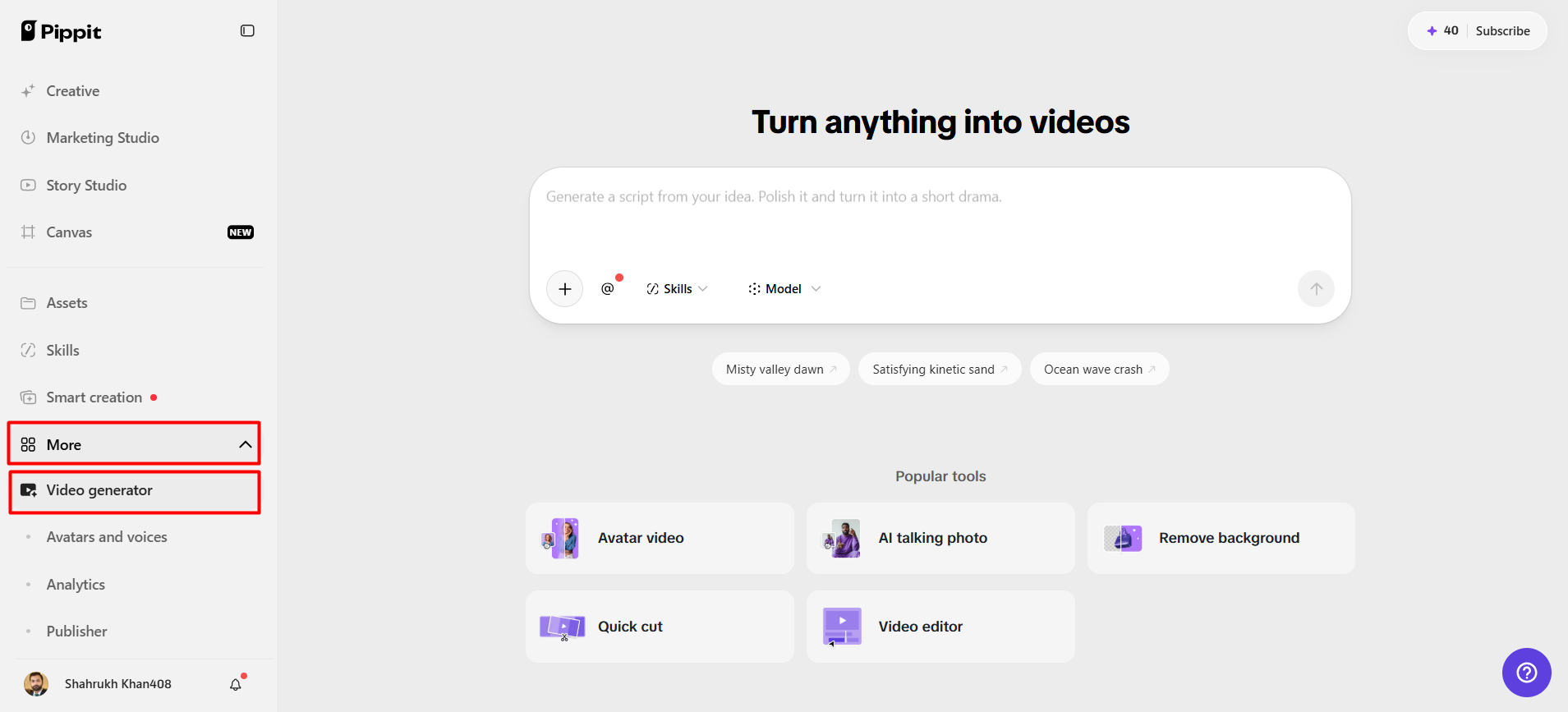
Open the “Video generator” from the left menu under the “More” tab to begin.
Step 2: Generate Your Reaction Video
-
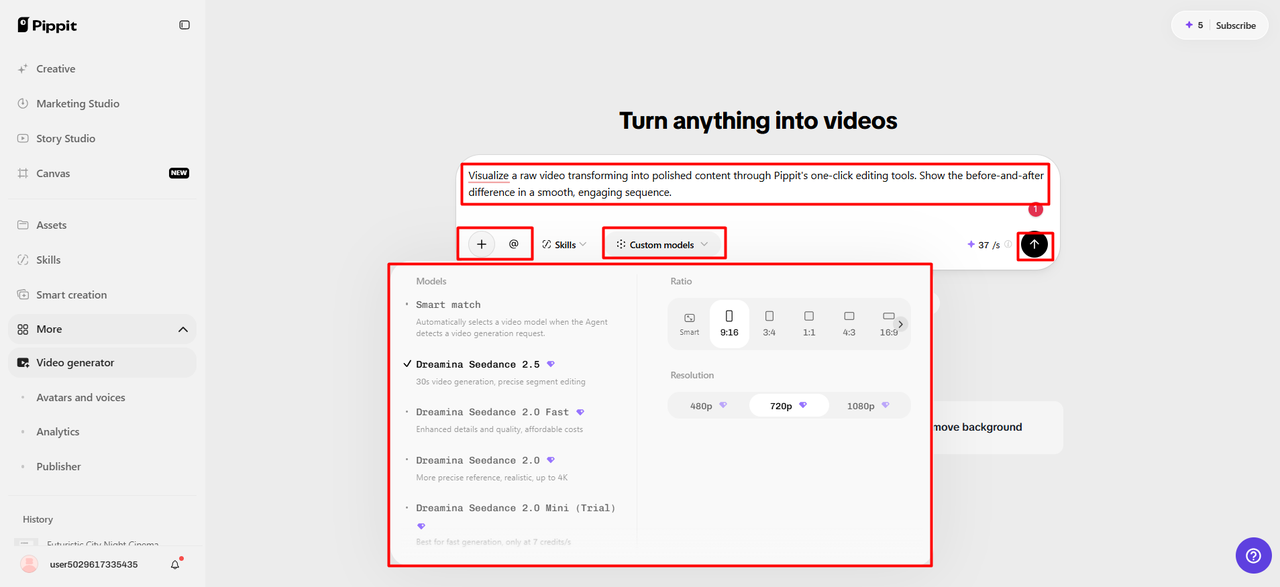
Select Dreamina Seedance 2.5, Dreamina Seedance 2.0, or Dreamina Seedance 2.0 Fast.
-
Choose Dreamina Seedance 2.0 Mini, Dreamina Seedance 1.0, or “Auto Route” for value.
-
Enter a detailed prompt describing unboxing reactions, products, camera moments, setting, and desired pacing clearly.
-
Click “+” to upload reference images or videos from your device, phone, Dropbox, or a link.
-
Select existing assets instead when suitable reference media is unavailable for unboxing reaction video creation.
-
Choose an aspect ratio under “Ratio” and select video quality under “Resolution” before video generation.
-
Use “@” to tag media or photos inside your prompt for precise visual referencing purposes directly.
-
Confirm every setting, then click “Generate” to create your unboxing reaction video quickly right now.
Step 3: Edit and Share Your Reaction
-
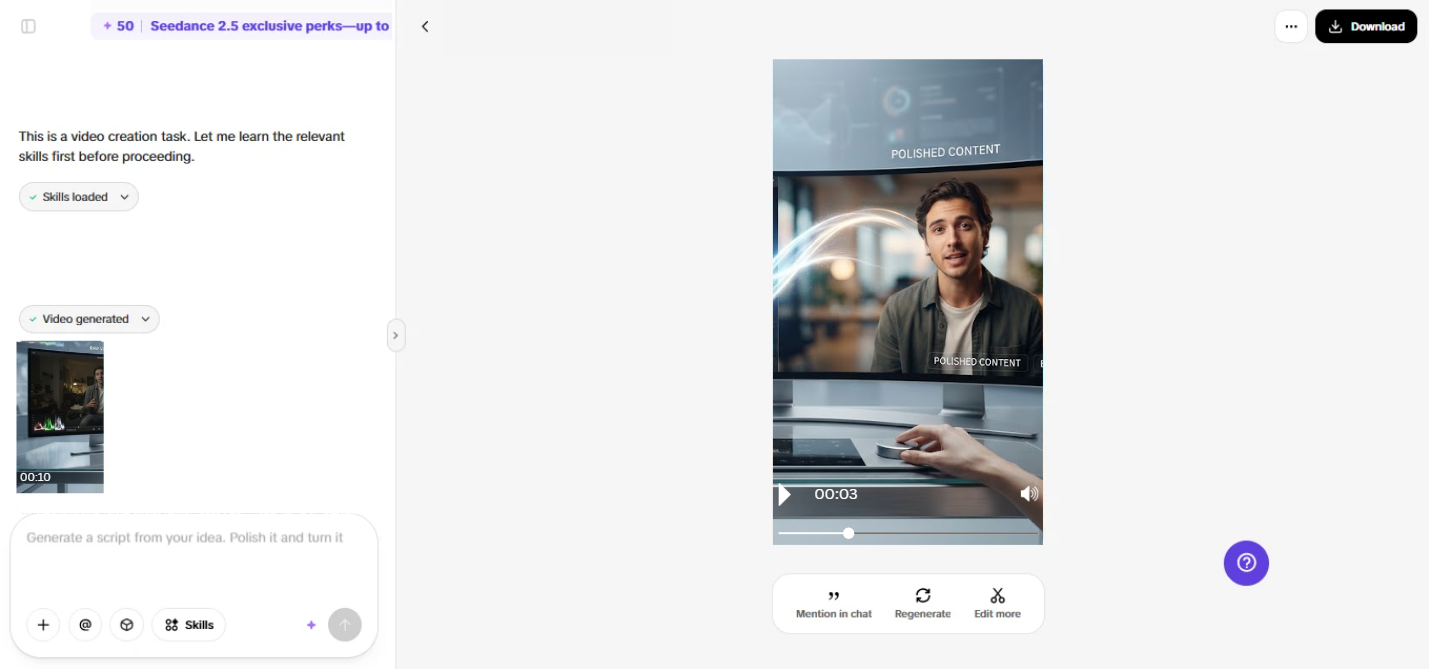
Preview the generated video and adjust details.
-
Click “Regenerate” when results need further changes.
-
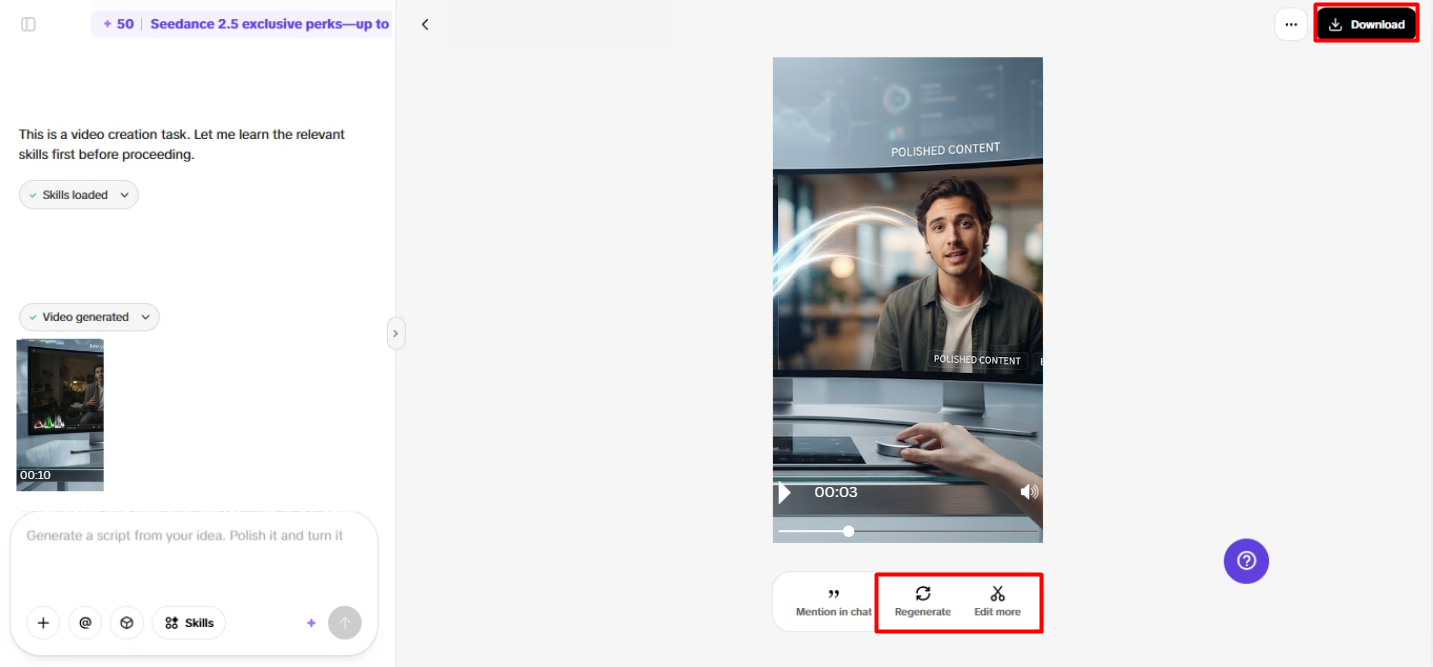
Click “Edit more” to refine your reaction video using Pippit’s available AI editing tools.
-
Manually edit captions, add text, and adjust size, color, alignment, filters, and effects for reactions.
-
Add background music, remove backgrounds, and fine-tune visuals until your unboxing presentation feels fully complete.
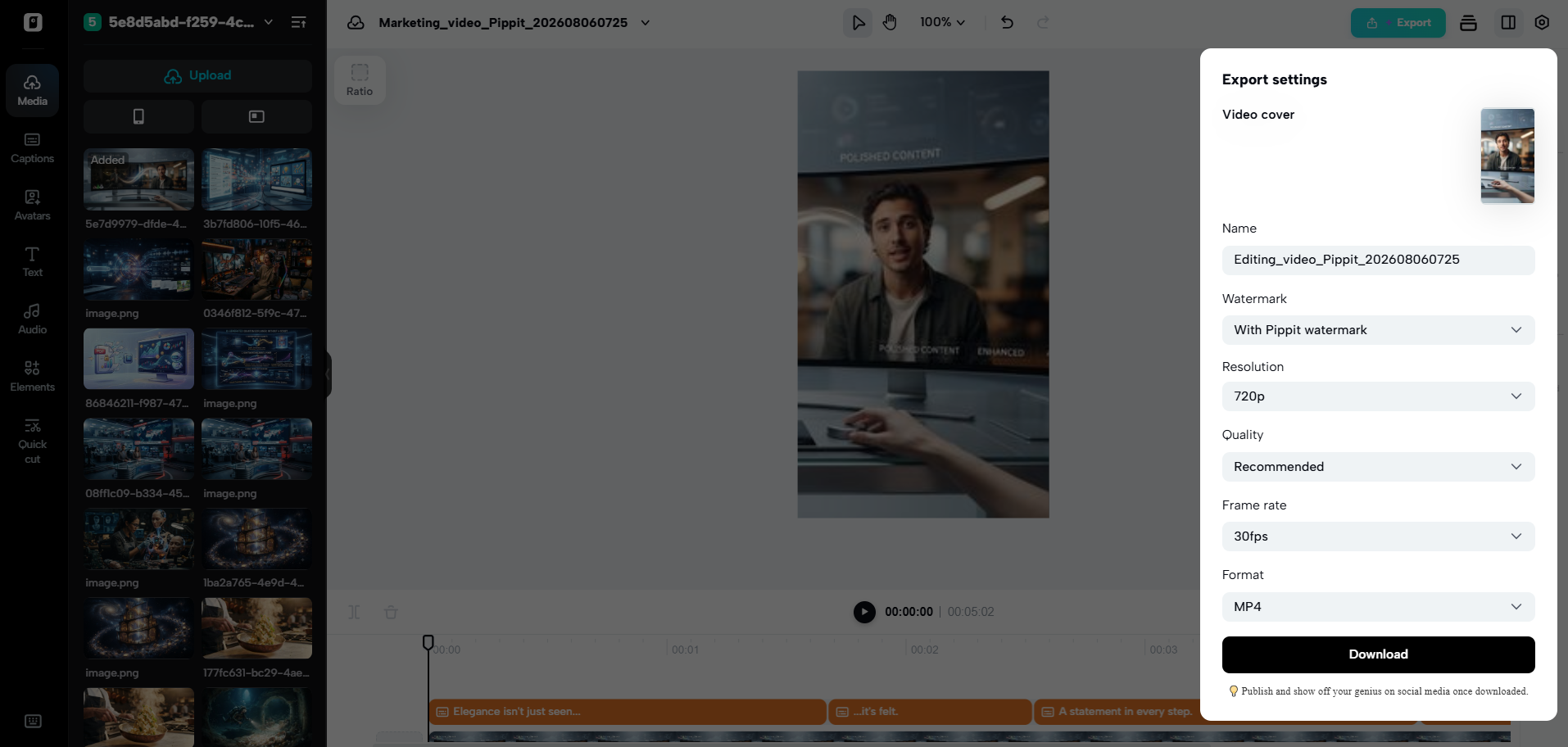
- Click “Download” to export the completed unboxing reaction video directly to your local device now.
-
Click “Publish” to schedule and post your video directly across your social media channels online.
Add Reaction Energy Without Losing Product Focus
Reaction energy is not the same as the product story; it should support it. Use captions to highlight surprise, satisfaction, curiosity, or whatever desired reaction. Introduce visual effects selectively around reveals, transitions, or important reaction moments. Allow enough product screen time to view the product inside. Background Music can add energy without taking over narration or product sounds. Pippit also has the ability to present concepts with AI avatars and speech-to-visuals. Connect the reaction level with the type of product, target group, and overall communication style. Restrained reactions and cleaner presentation may be beneficial for premium products. Playful social forms can help to enable more forceful expressions and quicker transitions.
Edit the Unboxing Sequence for Better Pacing
Edit out anything that does not help the story and slows it down. Remove any cuts that can be avoided, any repeated actions, and lengthy shots of packages. Allow the key product reveal time to sink in. Make sure that the captions do not block important product details or branding. Filters and effects should be used to enhance the desired mood rather than to add “noise. When the product requires more emphasis, background removal can help to create a cleaner composition. Look at transitions to ensure continuity between package, product, and reaction. Create an alternate version if a crucial scene seems inconsistent or confusing. To view the changes before selecting the final sequence. The finished video can be made to feel more deliberate by way of slight timing adjustments.
Review Product Accuracy Before Publishing
It’s important to be accurate, as the pictures created can add information that may not have been there. Compare product names, features, specifications, prices, and promotional claims to trusted sources. Evaluate packaging, colors, shapes, accessories, and labels that have been created against product media. Be alert for discrepancies in logos, switch positions, missing parts, or odd ratios. Ensure captions are a correct description of the video. Analyse voiceover scripts for claims of performance, results, or personal experience. Don’t make up reactions as if they were real customer reactions, unless the reactions are in fact real customer reactions. Make necessary edits and/or regenerations to questionable scenes before publication. Always check the wording of the promotion in case the price or availability can be altered. A final accuracy check ensures credibility and maintains the format to be interesting.
Conclusion
A great unboxing video should have a build-up, discovery, reaction, product information, and a concise takeaway. Pippit can automate generation, editing, captions, visual enhancement, and publishing in a single process. Clearly defined references provide a tie-in to known product features. Detailed prompts are used to eliminate creative ambiguity in each scene and provide a purpose for each scene. Purposeful reactions give the product personality and don’t take the attention away from it. Good editing helps to enhance pace, readability, continuity, and presentation quality. This is still important to verify at the end, since the created content may have visual or factual errors. This process renders repeatable unboxing formats faster and maintains editorial control.

Passionate about exploring diverse ideas and sharing inspiration, I curate content that sparks curiosity and encourages personal growth. Join me at ElementalNest.com for insights across a wide range of topics.